Appearance
Configuration
EleAgent is configured primarily through environment variables and a mounted system prompt file. All settings can be changed without rebuilding the Docker image.
System Prompt
The system prompt defines the agent's behavior, domain knowledge, and interaction patterns. It is mounted as a read-only file inside the container:
Host:      ./config/system_prompt.md
Container: /config/system_prompt.md
The agent reloads the system prompt on each new query, so changes take effect immediately without restarting.
What the System Prompt Contains
- Mandatory workflow phases — triage, clarification, plan & confirm, execute & deliver
- Project data layout — directory structure, key file paths
- Excel sheet guide — column mappings for kampada registries
- IFC conventions — PropertySet names, schema versions, element type mappings
- File naming conventions — KAR naming system for PDFs, IFCs, and drawings
- Known data issues — missing IfcSite entries, coordinate system inconsistencies, volume discrepancies
- Cross-validation protocol — rules for checking data across multiple sources
- Slovenian-to-IFC terminology mapping — how to translate engineering terms to IFC queries
Customizing the System Prompt
Edit the file directly on the host:
bash
vim ./config/system_prompt.mdTIP
The system prompt is the primary mechanism for improving agent performance. As testing reveals common question patterns or errors, update the prompt to address them. This iterative refinement is a key goal of Phase 1.
Per-Project System Prompts
In addition to the global system prompt, each project can have its own system_prompt.md file placed in the project's root directory. If present, its contents are appended after the global prompt under a PROJECT_SYSTEM_PROMPT: section.
/data/
├── ProjectA/
│   ├── system_prompt.md    ← project-specific instructions
│   └── ...project files...
├── ProjectB/
│   └── ...project files...  ← no project prompt, uses global only
This allows tailoring the agent's behavior per project — for example, adding project-specific terminology, file conventions, or workflow rules — without modifying the shared global prompt.
Like the global prompt, project system prompts are reloaded on each query, so changes take effect immediately.
Host Source Base Path
The HOST_SOURCE_BASE variable controls how file paths appear in the agent's responses. When the agent references a file (e.g., /data/PID_Karavanke/B-01_Predor/some_file.pdf), the /data prefix is replaced with the configured host path, so engineers see paths that match their local filesystem.
bash
# Example: engineer's project files are at K:\PID_Karavanke on Windows
HOST_SOURCE_BASE=K:\

# Agent response will cite: K:\PID_Karavanke\B-01_Predor\some_file.pdf
# Instead of:               /data/PID_Karavanke/B-01_Predor/some_file.pdf
Authentication
Web UI Authentication
Users authenticate with a username and password. On first access, you'll be prompted to create an admin account. This uses JWT tokens stored in an SQLite database at /artefacts/state/auth.db.
AI Model Authentication
Two modes are supported:
| Mode | Configuration | Best For |
|---|---|---|
| Anthropic Max | Log in through the web UI | Testing with included quota |
| API Key | Set ANTHROPIC_API_KEY env var | Controlled usage with billing |
Permissions
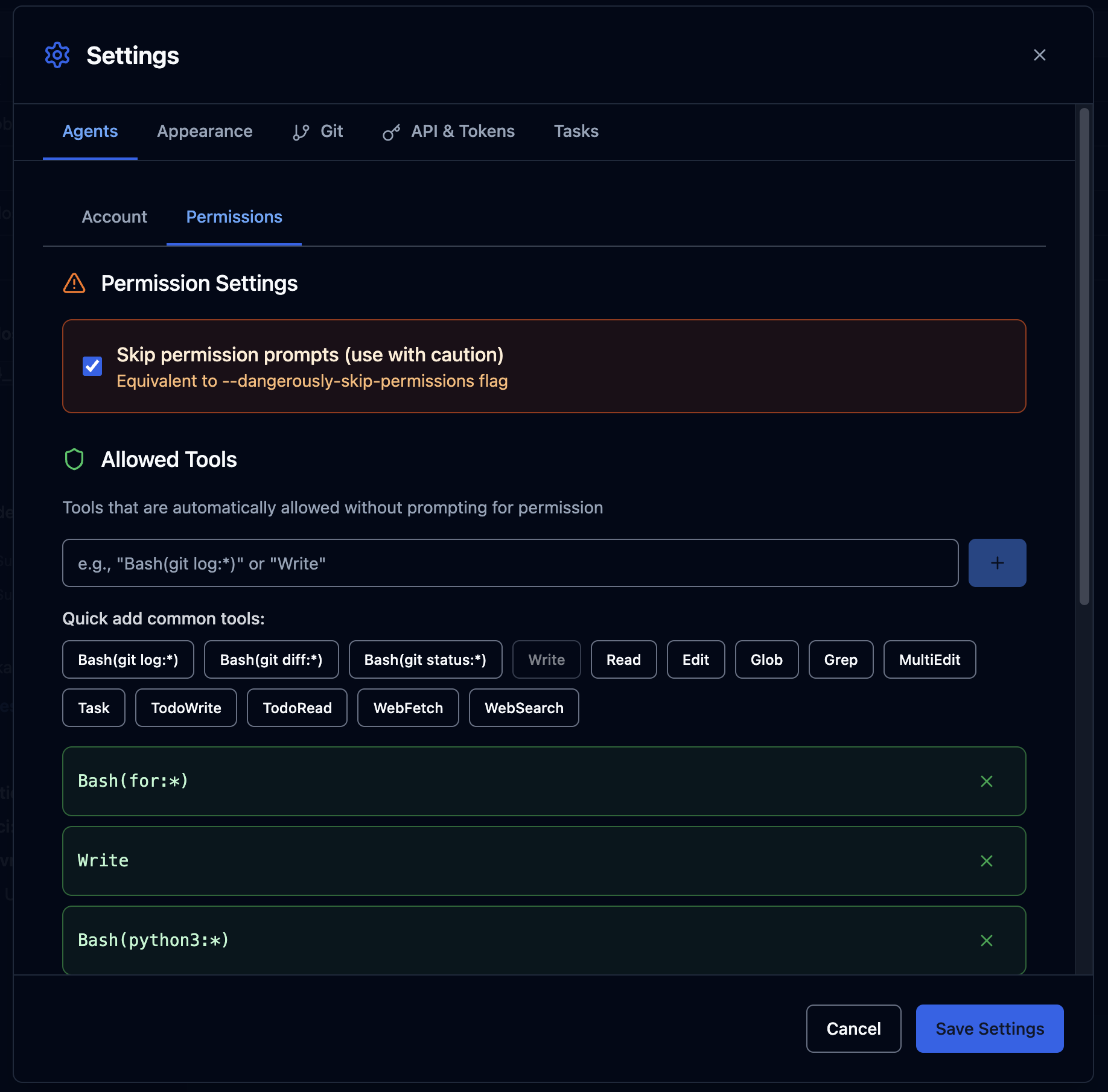
The web UI includes a permissions system that controls which tools the AI agent can use without asking for approval. This can be configured in Settings > Permissions.
Plan Mode
The mode toggle in the chat input area switches between Default Mode (direct execution) and Plan Mode (agent presents a plan for approval before executing tools).

Context Window
The CONTEXT_WINDOW variable (default: 160000 tokens) controls the token budget displayed to users. The circular indicator in the UI shows how much of the context window has been consumed.

Concurrent Session Limit
bash
MAX_ACTIVE_SESSIONS=5         # Max simultaneous AI queries
SESSION_LOCK_TTL_SECONDS=120  # Lock timeout (heartbeat interval)
When all 5 slots are occupied, new queries wait until a slot becomes available. See Session Management for details.
Network and Proxy
Workers route all outbound traffic through the egress proxy. The proxy configuration is at ops/egress-proxy/squid.conf:
bash
# Only Anthropic endpoints are allowed
acl anthropic_all dstdomain .anthropic.com
acl claude_platform dstdomain .claude.com
http_access allow CONNECT anthropic_all SSL_ports
http_access allow CONNECT claude_platform SSL_ports
http_access deny all
To add additional allowed domains (e.g., for package installation during testing), edit squid.conf and restart the egress proxy:
bash
docker compose restart egress-proxyAll Environment Variables
See Environment Variables for a complete reference.